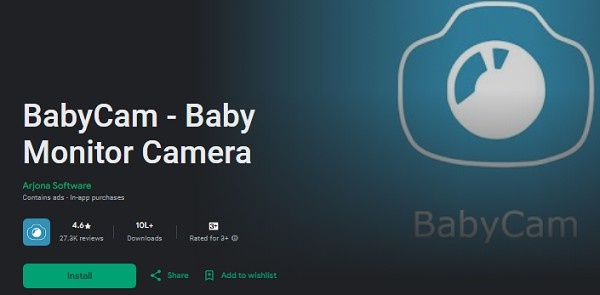
BabyCam Web Monitoring: Easy Guide to Watch Your Baby from Your PC
In the world of modern parenting, convenience and safety are top priorities. Thanks to technological advancements, parents can now monitor their babies from virtually anywhere, even from their computers. The BabyCam app is an excellent tool for real-time baby monitoring, allowing you to use two devices—one for the baby’s camera and another for the parent’s monitor. While the BabyCam app is available for mobile devices, you can also use it on a PC by accessing it through a web browser, offering the added advantage of a larger screen and enhanced comfort.
This comprehensive guide will walk you through the web-based method of using the BabyCam app to monitor your baby from your PC. It will explain the step-by-step process, its benefits, and why it’s a practical solution for parents who need a reliable and easy-to-use baby monitoring solution on their computers.
What is the BabyCam App?
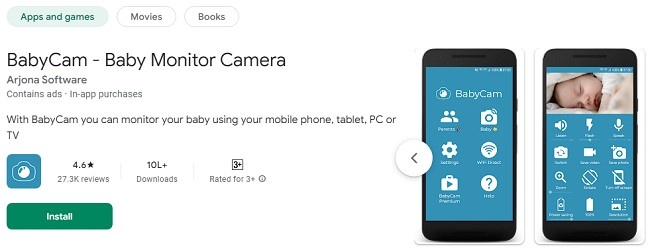
Before we dive into the web-based setup, let’s first understand what BabyCam is and how it works. BabyCam is a baby monitor app that allows parents to use two devices for monitoring their baby in real time. The app enables one device to act as a camera (placed in the baby’s room), while the other device serves as the monitor (used by the parent to view the baby).
The app is highly rated for its ease of use and reliability, offering several features that make monitoring your baby both effective and convenient, such as:
Real-Time Video Streaming: Watch your baby live from any connected device.
Two-Way Audio: Speak to your baby and listen to their sounds.
Night Mode: View the baby even in low-light environments.
Wi-Fi Direct Support: Connect devices without needing an internet connection.
Photo and Video Capture: Record precious moments of your baby.
Battery Level Monitoring: Keep track of the battery status of the baby’s device.
While BabyCam is available for both Android and iOS devices, using the web-based method to monitor your baby allows for a more convenient and enhanced viewing experience, especially if you prefer using your PC. By accessing the app from your computer’s web browser, you can use all of BabyCam’s features on a larger screen, making it easier to watch your baby while working or managing other tasks.
Why Choose to Monitor Your Baby with BabyCam on a PC?
There are several reasons why you may want to monitor your baby using BabyCam from your PC. Some of the key benefits include:
1. Larger Screen for Better Visibility
One of the most significant advantages of using BabyCam on your PC is the larger screen. With a bigger screen, it’s easier to spot small details and keep a more comprehensive watch on your baby. Whether you're multitasking or simply prefer a larger view, this is especially helpful for parents who want to see every little movement their baby makes.
2. Increased Comfort
Watching your baby on a smartphone or tablet for extended periods can strain your eyes, especially when the screen is small. On a PC, you can relax and monitor your baby with more comfort, sitting back in your chair or couch without having to hold a mobile device.
3. No Battery Drain
Using BabyCam on your phone or tablet can quickly drain the battery, especially if you're using other apps simultaneously. When using BabyCam on your PC through the web method, you don't need to worry about your device running out of battery, ensuring that you can monitor your baby without interruption.
4. Better Multitasking Capabilities
If you're working, cooking, or taking care of other tasks, monitoring your baby through your PC allows you to multitask effectively. You can open multiple windows, check emails, or continue working while keeping an eye on your baby’s well-being in the background.
5. Improved Stability and Performance
Unlike mobile devices, PCs generally provide better processing power, offering enhanced performance and stability when running apps. The web-based BabyCam solution will be more reliable, and you're less likely to encounter lag or interruptions, which can be an issue on mobile devices when running multiple apps at the same time.
Steps to Download BabyCam App & Use the Web Method on Your PC
To monitor your baby using BabyCam through the web method, you'll need to follow a few simple steps. Here’s a detailed, step-by-step guide on how to set it up on your Windows or Mac PC using the web interface:
Step 1: Install BabyCam on Your Baby’s Device
BabyCam requires two devices to function. One device will act as the baby’s camera (the device that captures the video and audio), while the other will be the parent’s monitor (the device used to view the live video feed).
Download BabyCam on the Baby’s Device:
Install BabyCam from the Google Play Store for Android phones or tablets on your baby’s device.
Set Up the Baby’s Device:
Once installed, open BabyCam on the baby’s device and grant the necessary permissions for camera and microphone access.
Position the device in a suitable place in your baby’s room, ensuring it has a clear view of the crib or sleeping area.
Ensure the baby’s device is connected to the same Wi-Fi network as the parent’s device or use Wi-Fi Direct if you don’t want to use the internet.
Step 2: Set Up the Parent’s Device
Next, you’ll need to set up the parent’s device, which will monitor the live feed from the baby’s device. In this case, the parent’s device will be your PC, which will allow you to monitor your baby through a web browser.
Open Your Web Browser:
On your Windows PC or Mac, open your web browser (Google Chrome, Firefox, Safari, etc.).
Connect to the Baby's Device:
Click on the baby monitoring option from the app.
Next, you will see an IP address on the monitoring screen.
Enter that IP address as it is on your PC web browser to access the full control of monitoring your baby and other features.
Ensure both the parent’s device (your PC) and the baby’s device are connected to the same Wi-Fi network or paired via Wi-Fi Direct.
After logging in or skipping the sign-up process, your PC will prompt you to connect to the baby’s device.
Ensure both the parent’s device (your PC) and the baby’s device are connected to the same Wi-Fi network or paired via Wi-Fi Direct.
The BabyCam website will automatically detect available devices in your local network, and you can select the baby’s device from the available list to start the live feed.
Step 3: Monitor Your Baby via the Web
Once the connection between the parent’s device and the baby’s device is established, you can start monitoring your baby. Here’s what you can do:
Real-Time Video Streaming:
The live video feed will begin streaming directly to your web browser. You can watch your baby’s movements, ensuring they’re safe and sound at all times.
Two-Way Audio:
You can use the two-way audio feature to listen to your baby and even speak to them. This is helpful if you want to calm your baby down or check if they’re okay.
Night Mode:
Enable night mode on the web interface for better visibility in low-light conditions. This feature is particularly useful for night monitoring, as it enhances the clarity of the video feed without hurting your eyes.
Battery Monitoring:
On the web interface, you can monitor the battery status of the baby’s device to ensure it doesn’t run out of power while you're monitoring the feed.
Photo and Video Capture:
You can also take photos and record videos from your PC while monitoring the baby. This allows you to capture precious moments.
Multiple Device Connections:
You can connect more than one parent’s device to the baby’s camera. For instance, both mom and dad can monitor the baby at the same time on their respective devices.
Step 4: Disconnect and Close the Session
Once you're done monitoring, you can easily disconnect the session:
Disconnect the Devices:
Simply close the web browser tab or log out of your BabyCam account.
Disconnecting will stop the live feed and free up the resources.
Power Off the Baby’s Device (Optional):
If you're done monitoring for a while, you can turn off the baby’s device or put it in standby mode.
Advantages of Using the Web Method to Monitor Your Baby
Using the web method to monitor your baby offers several distinct advantages:
1. Access from Anywhere
Since BabyCam works through your web browser, you can monitor your baby from any PC with internet access. Whether you're at home or at work, you can quickly check in on your baby.
2. No Additional Software Required
Unlike mobile apps, using BabyCam on your PC via the web doesn’t require additional software or downloading APKs. All you need is a reliable internet connection, a modern web browser, and a device to monitor the feed.
3. Simple Setup
The web-based method is simple to set up and requires little technical know-how. You can get up and running in just a few minutes by following the steps outlined in this guide.
4. Enhanced Features
The web interface often supports better performance and more features compared to mobile apps. You can watch the live feed in higher resolution, and the audio and video quality are often more stable when using a desktop or laptop.
Troubleshooting Common Issues
Here are a few common issues you may encounter and how to resolve them:
No Connection Between Devices:
Ensure that both the baby’s device and the parent’s device are connected to the same Wi-Fi network. If using Wi-Fi Direct, ensure both devices have it enabled.
Lag in Video Feed:
Try closing unnecessary tabs or programs on your PC that may be using up bandwidth. Ensure your internet connection is stable.
Audio Issues:
Make sure both devices have their microphones enabled and that the volume settings are adjusted appropriately.
Conclusion
Monitoring your baby from a PC using the web method with the BabyCam app offers numerous benefits, including better visibility, enhanced comfort, and the convenience of multitasking. By following the steps outlined in this guide, you can easily download, set up, and use BabyCam on your PC to ensure your baby is safe and sound. Whether you're working from home or simply want to keep an eye on your little one while doing other tasks, BabyCam makes it easier than ever to stay connected with your baby.
Trending Now
Updates